CIMNotebook for IntelliJ
The IntelliJ plugin gives you real-time SPARQL and SHACL validation against CIM / CGMES schema profiles directly in IntelliJ-platform IDEs. It is a thin client around CIMLangServer, wired into the IDE through the LSP4IJ LSP client.
Requirements
- IntelliJ IDEA (or any IntelliJ-platform IDE) 2024.2 or later. The plugin launches the language server on the IDE's bundled Java runtime, which is Java 21+ from 2024.2 onward.
- LSP4IJ — a required dependency, installed automatically from the Marketplace.
- Java 21 or later. By default the IDE's own runtime is used; you can override this in settings.
Install
Install CIMNotebook from the JetBrains Marketplace — inside the IDE open Settings → Plugins → Marketplace, search for CIMNotebook, and click Install. LSP4IJ is a required dependency, and IntelliJ installs it automatically as part of a Marketplace install.

If you install CIMNotebook from a downloaded .zip (Install Plugin from Disk), IntelliJ does
not resolve Marketplace dependencies — install LSP4IJ manually first (Settings → Plugins
→ Marketplace → search "LSP4IJ").
After install, point CIMNotebook at your CGMES profiles via an
opencgmes.jsonc (run Tools → CIMNotebook: Create Config File to
scaffold one) or a # [endpoint=...] directive in the query. Without a schema, validation is
syntax-only — there is no bundled default schema. Then open any .rq, .sparql, .ttl, or
.shacl file: the server starts, loads the schema in the background, and begins validating.
Features
Syntax highlighting
Lexer-based highlighting for SPARQL (.rq, .sparql) and SHACL / Turtle (.ttl,
.shacl).
.ttl extensionThe SHACL file type deliberately claims the generic .ttl extension, since ENTSO-E and most tooling
ship SHACL shapes as plain Turtle. If another installed plugin already owns .ttl, add the
association under Settings → Editor → File Types → SHACL.
Real-time diagnostics
Every open document is validated against the loaded schema; findings appear as inline underlines — unknown classes and properties, syntax errors, domain/range mismatches, datatype conflicts, and invalid SHACL cardinalities. The full list of codes and severities is on the Validation checks page.

Hover documentation
Hover over any CIM term (e.g. cim:ACLineSegment) to see its full IRI, its rdfs:label and
rdfs:comment, and its rdfs:domain / rdfs:range and declaring profile(s) — read straight from
the loaded schema.
Auto-completion
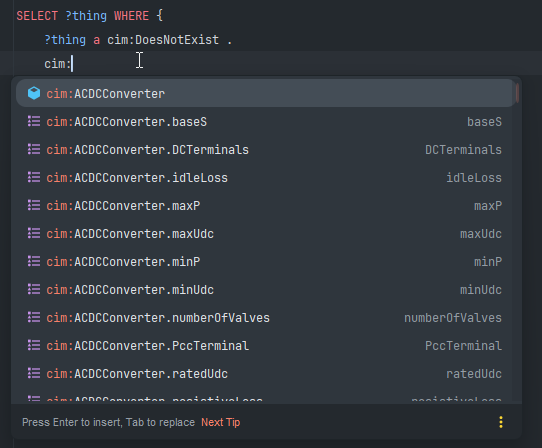
Typing : after a prefix (e.g. cim:) triggers completion suggestions for all classes and
properties in the loaded schema. In object position after an enumeration-ranged property, the
enumeration's members are suggested (e.g. cim:WindGenUnitKind.offshore).
Go to definition
Ctrl+Click / Cmd+Click (or Ctrl+B / Cmd+B) on any CIM IRI jumps to its declaration line in
the source .rdf or .ttl profile file.
Workspace symbol search
Use Go to Symbol (Ctrl+Alt+Shift+N on Windows/Linux, Cmd+Option+O on macOS) and type a CIM
class or property name to navigate to any schema term. Matching is partial and case-insensitive —
aclineseg matches ACLineSegment.
Settings
Under Settings / Preferences → Tools → CIMNotebook. Schema configuration itself lives in
opencgmes.jsonc, not here.
| Setting | Default | Description |
|---|---|---|
| Server JAR | (bundled) | Absolute path to cimvocabcheck-lsp.jar. Leave empty to use the JAR bundled with the plugin. |
| Java executable | (IDE runtime) | Java executable used to launch the language server. Must be Java 21+. Leave empty to use the IDE's own runtime. |
| JVM arguments | (none) | Extra JVM arguments passed before -jar, e.g. -Xmx512m. |
Building from source
The plugin bundles the language server JAR, which is built by the cimvocabcheck-lsp Maven module:
# 1. Build the language server fat JAR
mvn -f ../../cimvocabcheck/lsp/pom.xml package -DskipTests

# 2. Build the plugin (copies the JAR into the plugin and zips it)
./gradlew buildPlugin

# 3. (Optional) Run the IntelliJ Plugin Verifier
./gradlew verifyPlugin
The resulting plugin zip is written to build/distributions/.
Troubleshooting
Common IntelliJ issues — no diagnostics, Java not found, the .ttl file-type conflict, and the
server failing to start (use LSP4IJ's Language Servers tool window) — are collected on the
Troubleshooting page.